

What this is
The Supamodel connector lets Claude read your business data. Once it’s connected, you can ask Claude questions such as “How did sales compare to last month?” and it answers using your Supamodel data. Each person connects Claude to Supamodel themselves. It takes about 5 minutes.Before you start
You need:- A Claude account. Custom connectors are available on paid Claude plans.
- The Supamodel client ID we sent you with your login details.
- Your Supamodel sign-in. Depending on how your company is set up, this is your Google work account or the login details we gave you. See Sign in with Google for more.
If your company uses a Claude Team or Enterprise plan, an owner may need to add the Supamodel connector for your organisation first. If you don’t see Add custom connector, ask your Claude owner.
Add the connector
1
Open your connectors
In Claude, click Customize in the sidebar, then click Connectors.Click Add, then Add custom connector.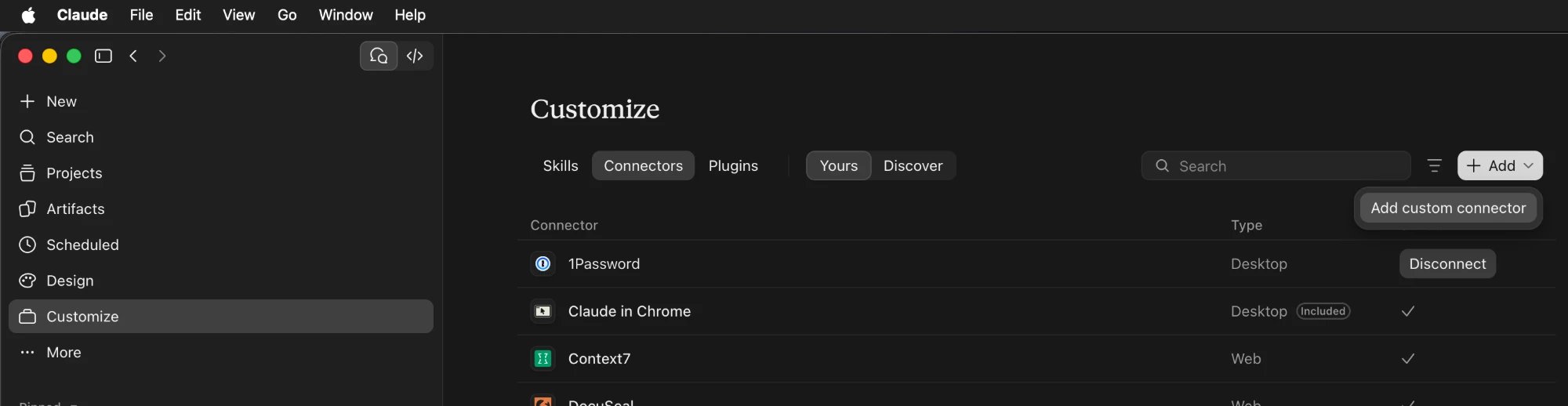
2
Enter the Supamodel details
Enter these details: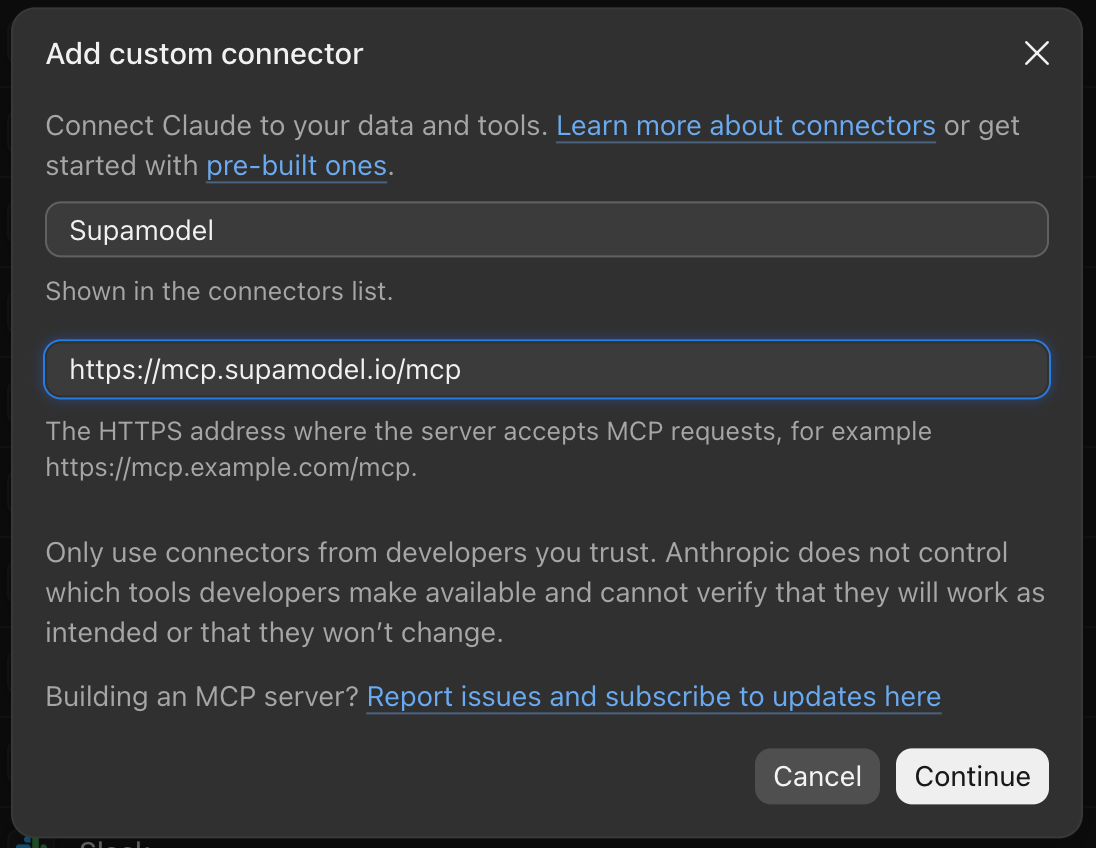
- Name:
Supamodel - Server URL:
https://mcp.supamodel.io/mcp
3
Continue past the server check
Claude tries to check how Supamodel signs in. It shows Couldn’t check the server with a 403 error. This is expected, because Supamodel needs your client ID first.Click Continue anyway.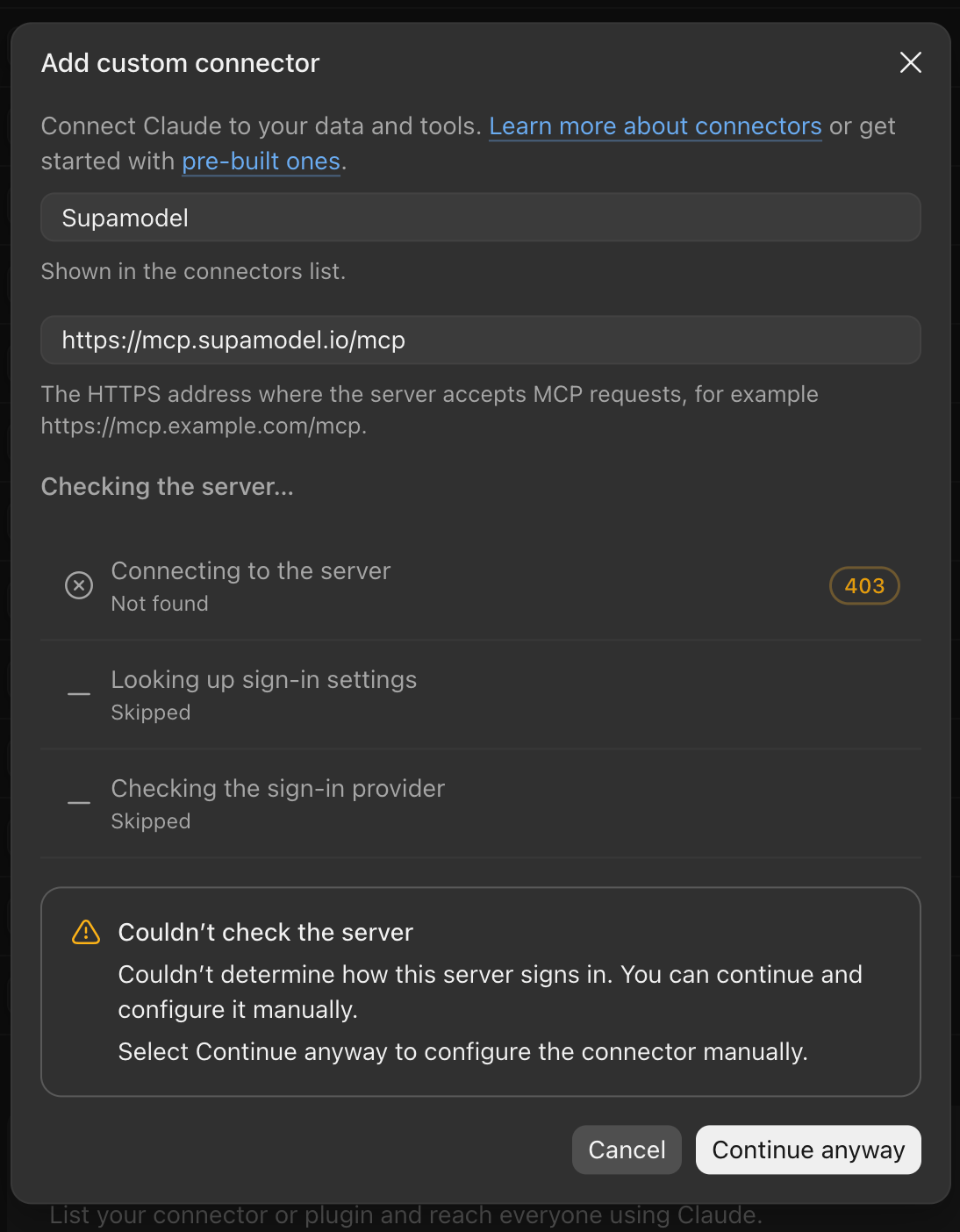
4
Enter your client ID
Leave the sign-in option as it is. Under OAuth client, select Use your own OAuth client.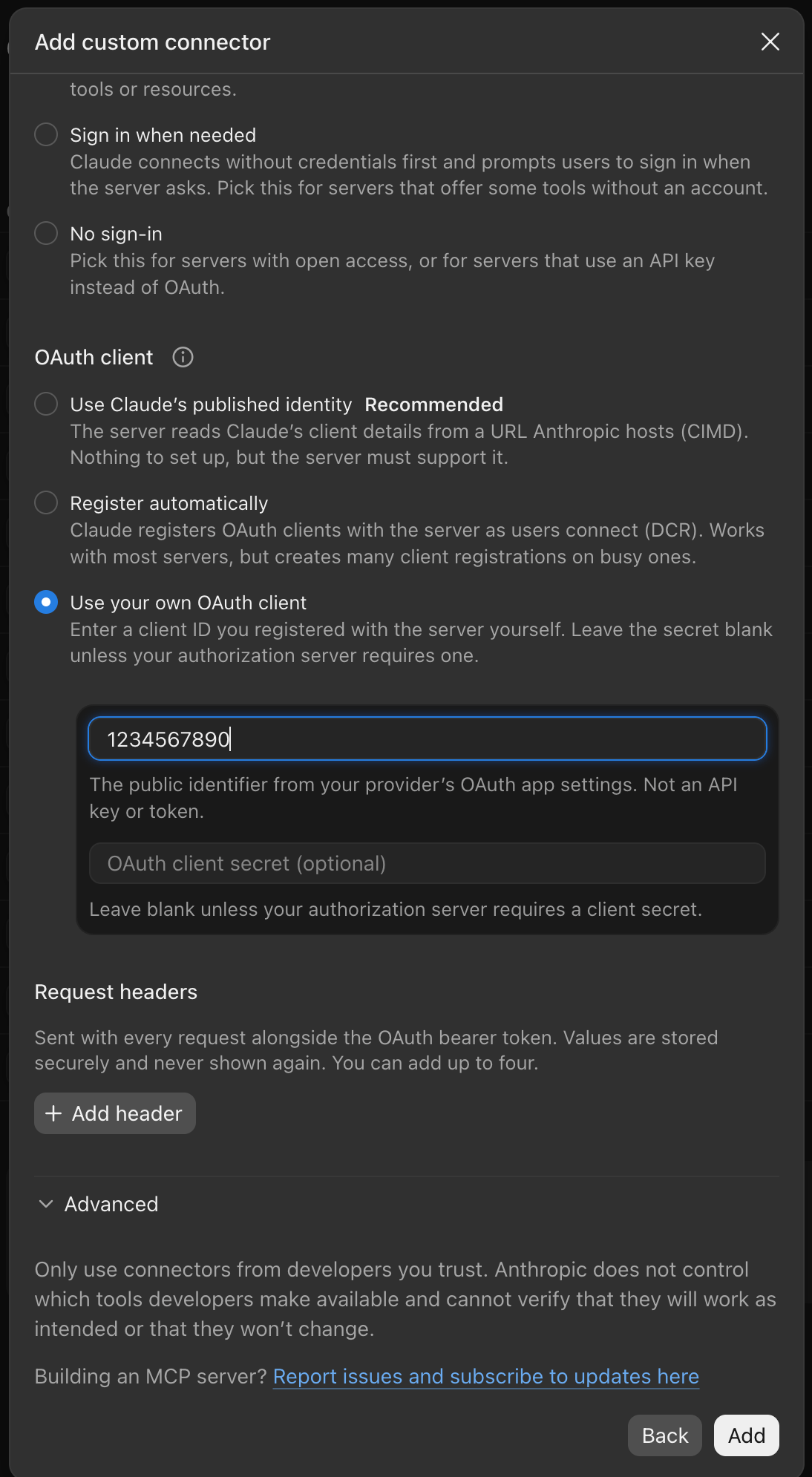
- OAuth client ID: paste the client ID we sent you with your login details
- OAuth client secret: leave this empty
5
Connect
Claude shows You’re not connected to Supamodel yet. Click Connect.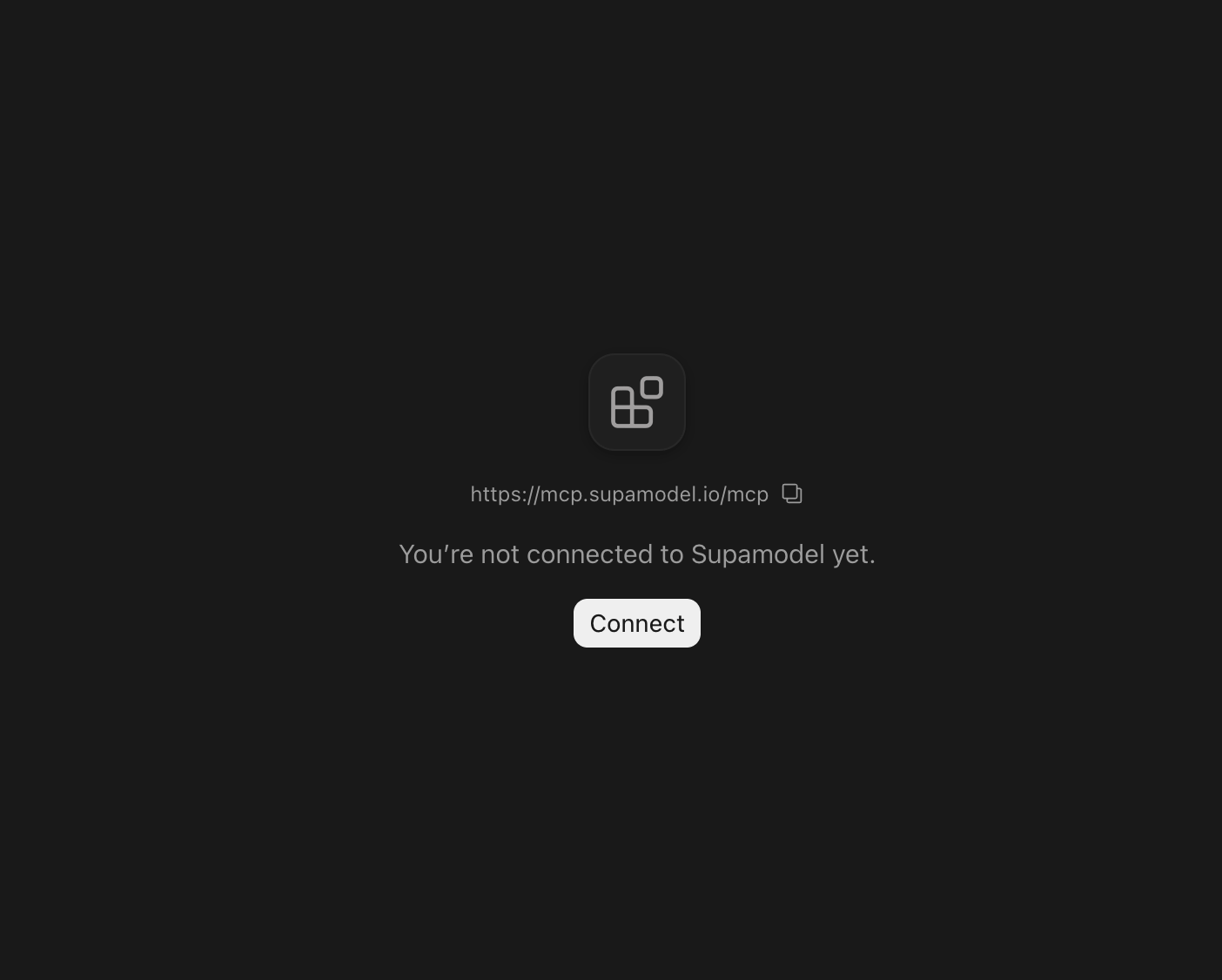
6
Continue connecting
Claude asks Finish connecting a connector? You started this connection yourself, so click Continue connecting.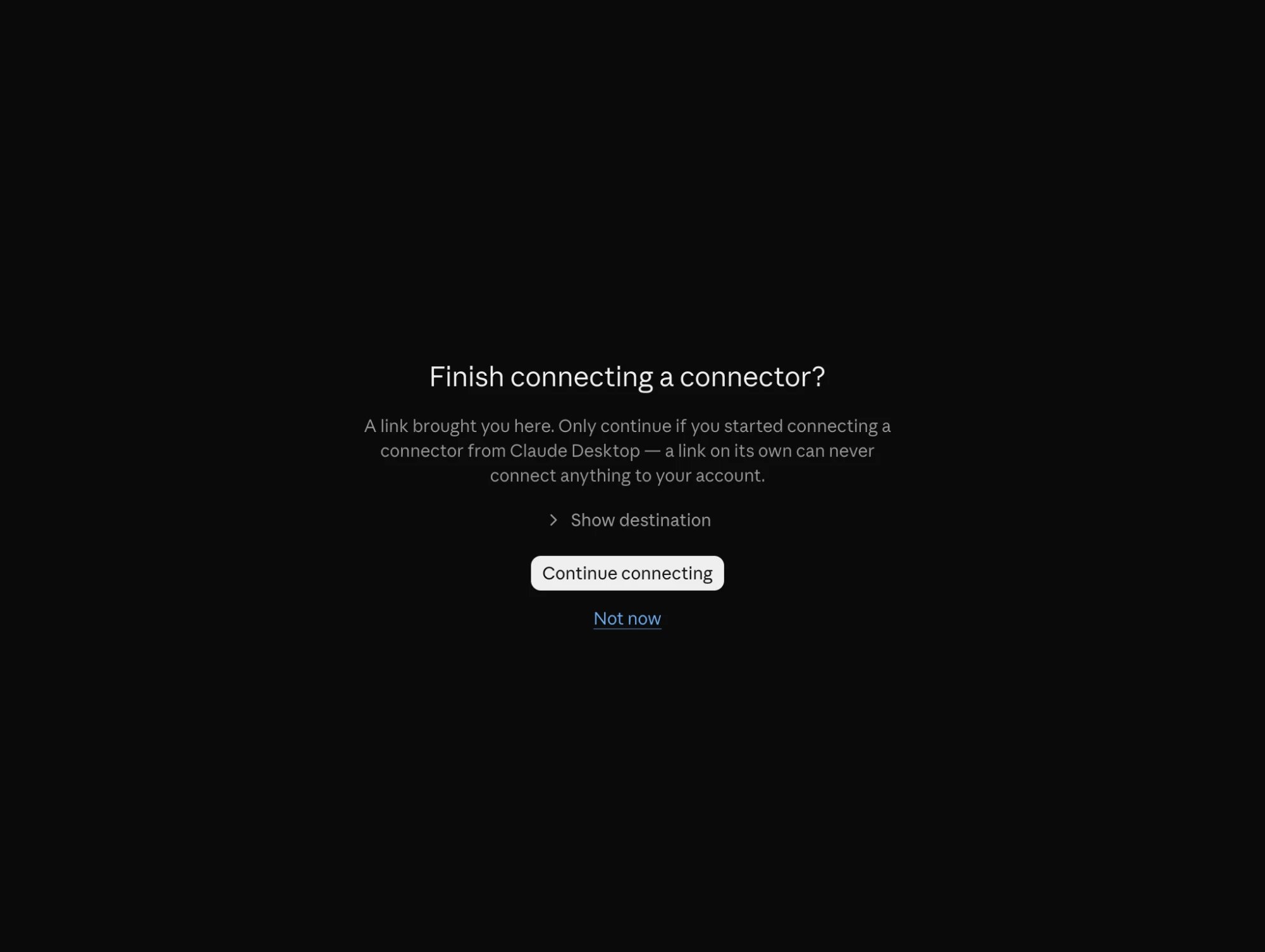
7
Sign in to Supamodel
Your web browser opens the Supamodel sign-in page. Type your work email and continue. If your company uses Google sign-in, Supamodel sends you to Google. Otherwise, enter the password we gave you.
8
Go back to Claude
If you use the Claude desktop app, your browser asks to open Claude. Click Open “Claude”.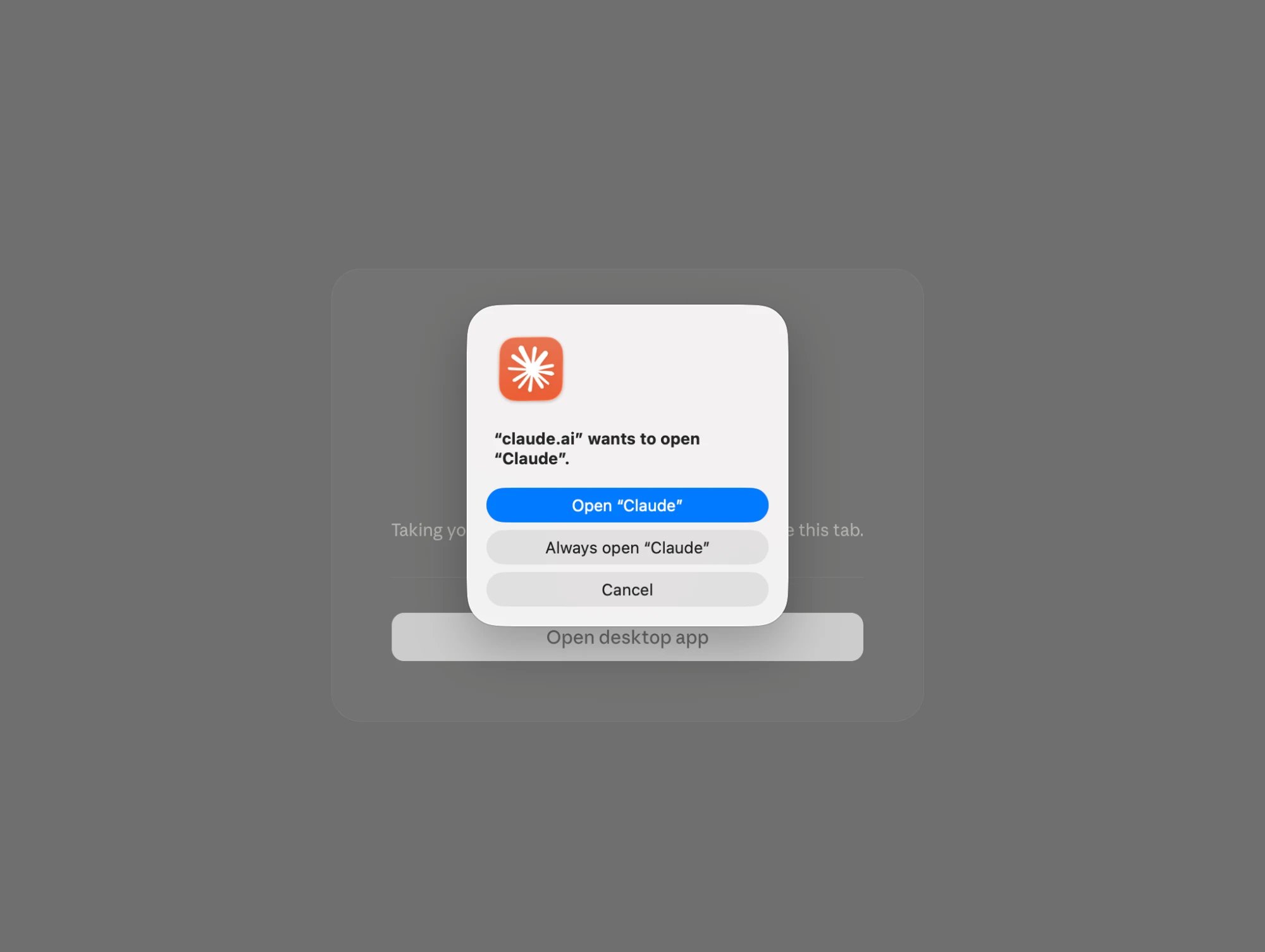
9
Choose when Claude can use Supamodel
You’re now connected. The Supamodel page shows Disconnect and a list of tools under Tool permissions.The Supamodel tools only read your data. They can’t change anything. To stop Claude asking for permission every time, set Other tools to Always allow.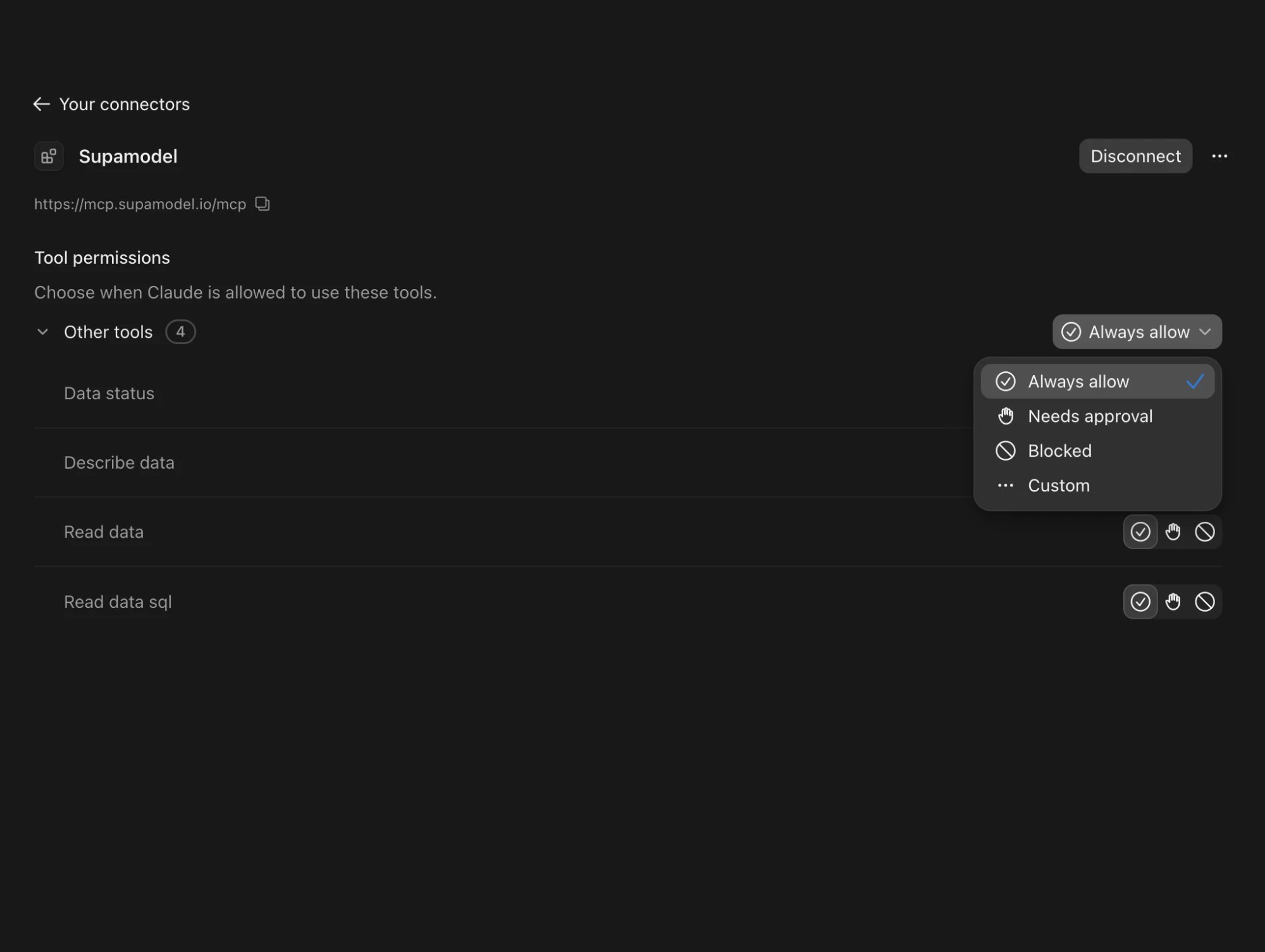
Check it works
Start a new chat in Claude and ask a question about your business, for example “What data does Supamodel have?” Claude uses the Supamodel connector to answer.Add the Supamodel skill (optional)
We may send you a skill file for your company, for exampleyourcompany-analysis.zip. A skill tells Claude how your data fits together, so its answers are more accurate.
1
Open your skills
In Claude, click Customize in the sidebar, then click Skills.Click Add, then Upload skill.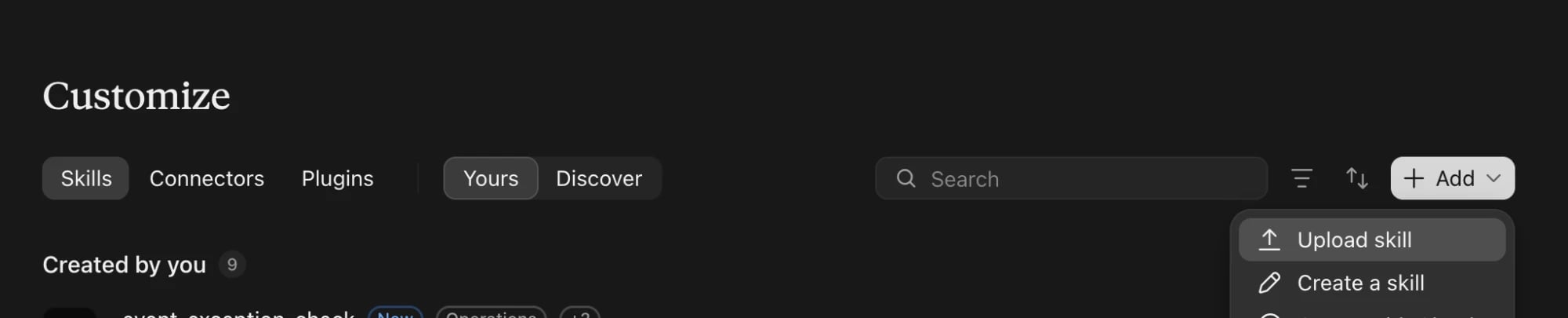
2
Upload the file
Drag the skill file we sent you into the box, or click to browse for it. Claude runs a security scan on the file.Click Upload.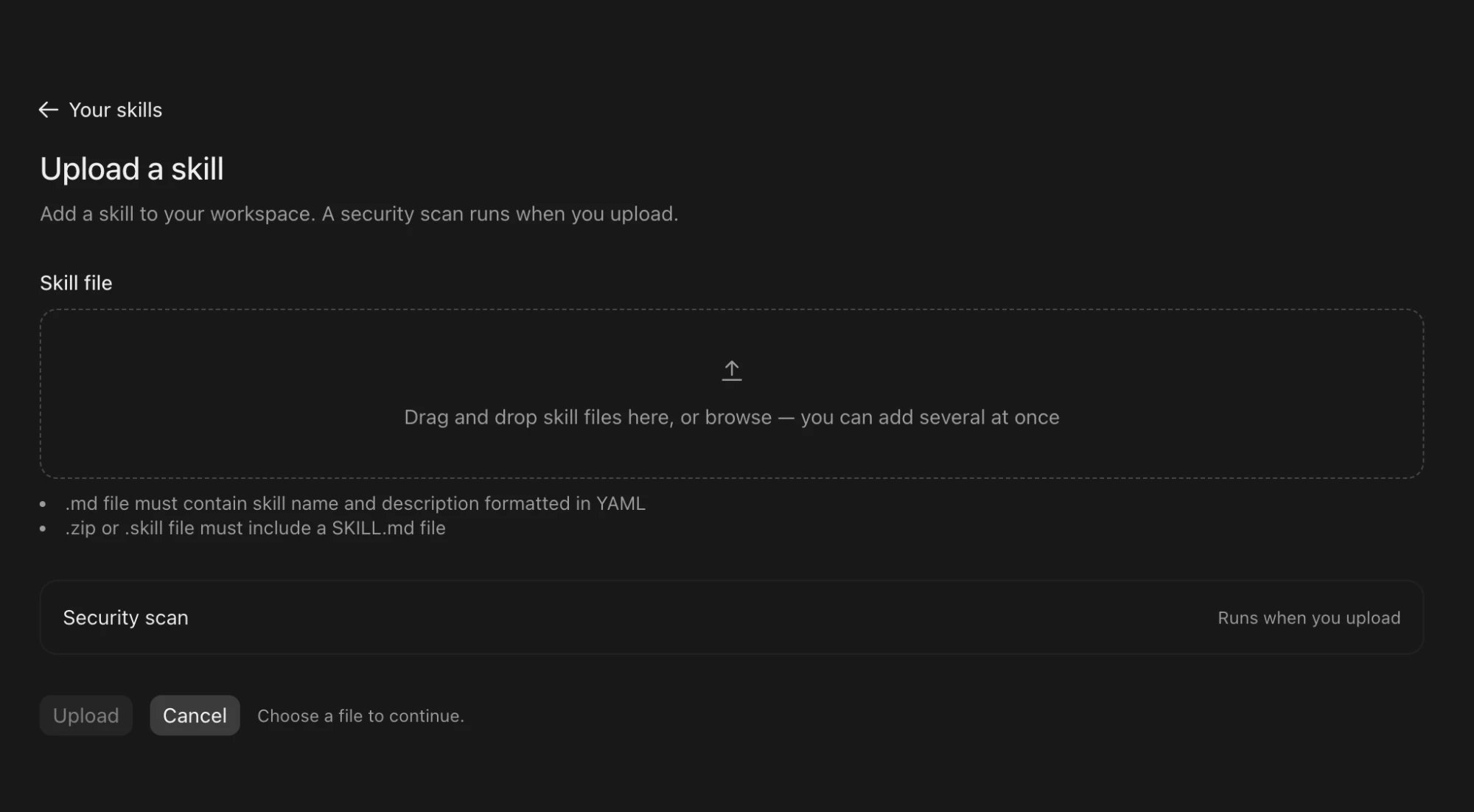
Reconnect or disconnect
To reconnect, for example after your company switches to Google sign-in, go to Customize > Connectors > Supamodel. Click Disconnect, then Connect, and sign in again. To remove the connector, click Disconnect. Claude can no longer read your Supamodel data.Troubleshooting
I don't see Add custom connector
I don't see Add custom connector
Custom connectors need a paid Claude plan. On a Team or Enterprise plan, your Claude owner may need to add the Supamodel connector for your organisation first.
The sign-in page says I don't have access
The sign-in page says I don't have access
Your account hasn’t been set up yet, or you’re signing in with a different email. Check you’re using your work email, then contact us.
Claude asks me to sign in again
Claude asks me to sign in again
This is normal if you haven’t used Claude for a while, or if your company changed how you sign in. Click Connect and sign in again.